
service comparison Widget
QUICK START GUIDE
Add the Service Comparison Widget to any page from the Widget Marketplace and search for "Service Comparison Widget" under the "Installed" category.
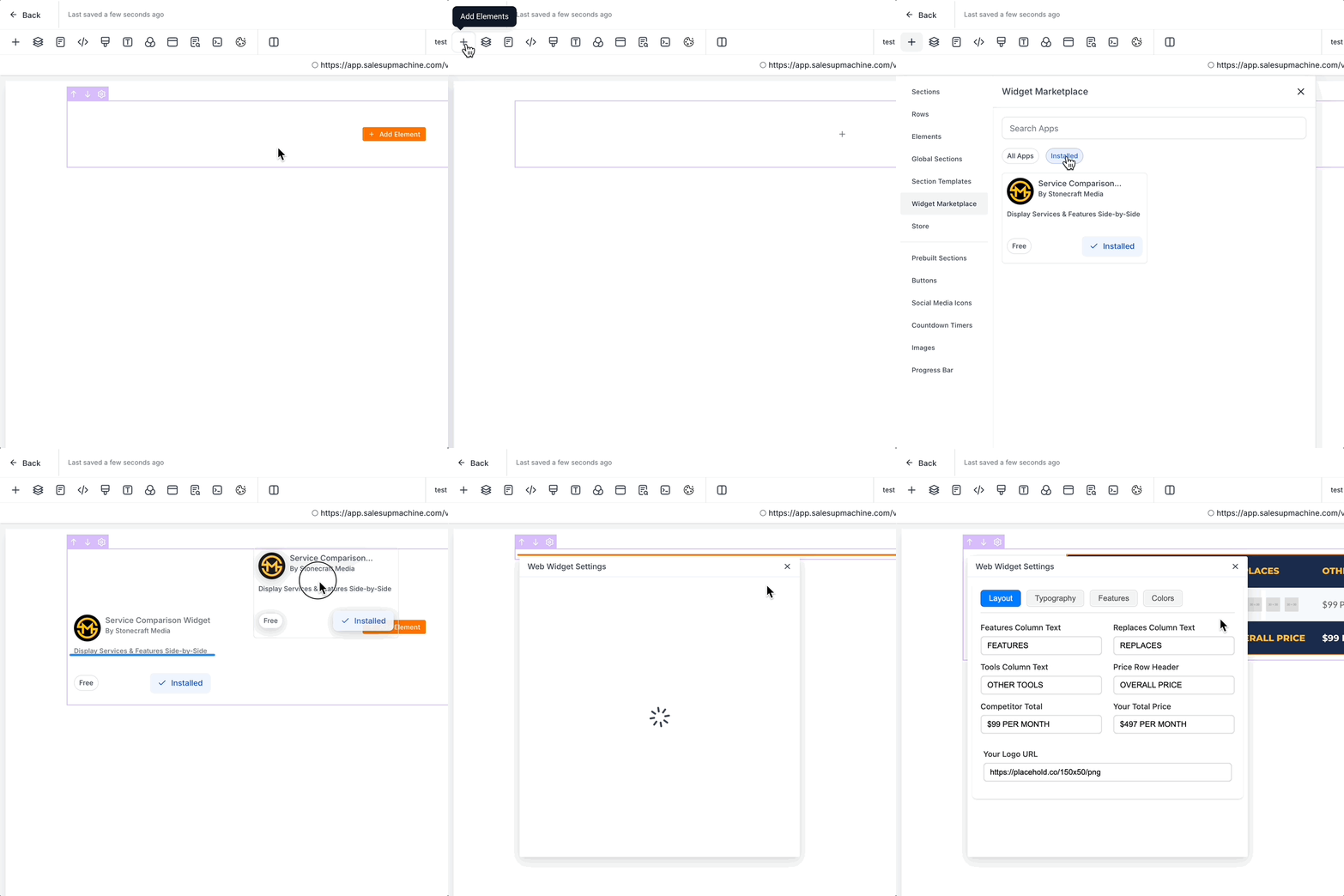
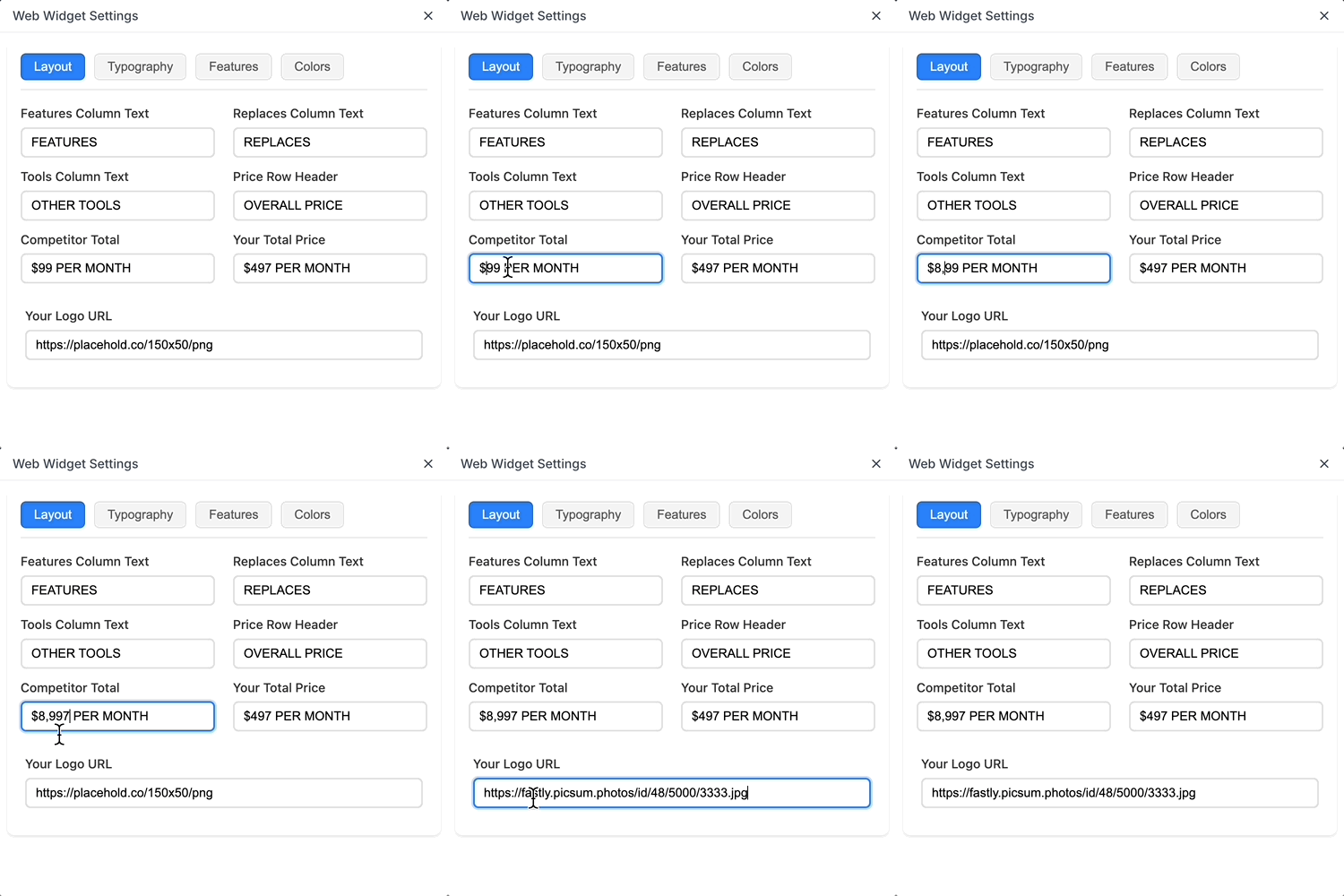
Set your "Layout" options and your main logo.
(Recommended image size = 150px wide, 50px tall)
Set the Typography options to match your brand.
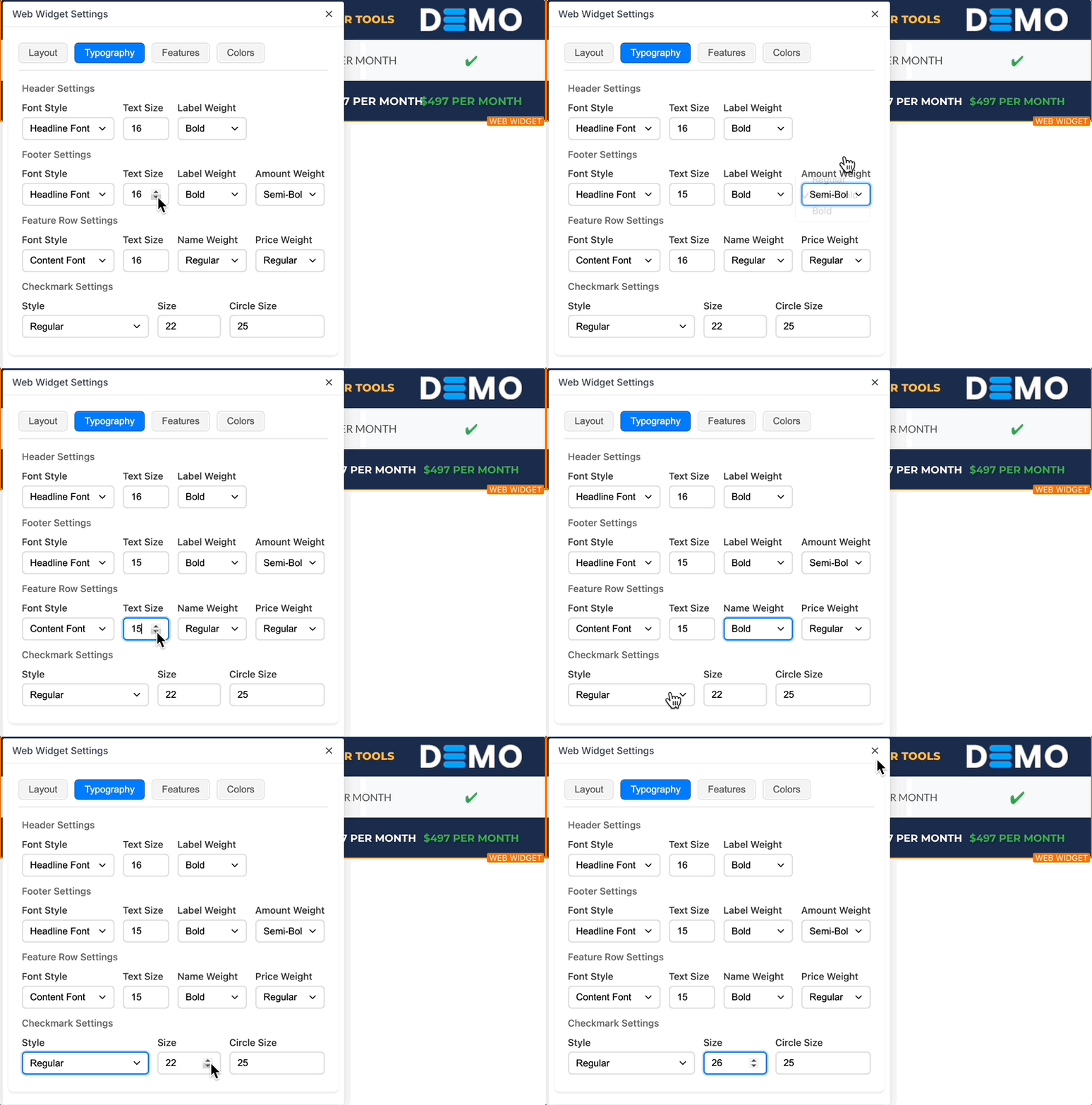
Important: Be sure to set your "Headline Font" and "Content Font" via the native page builder settings. The widget will allow you to choose which native font type to be displayed.
The widget's largest font size available is 16px. This helps keep the widget layout looking clean & easy to read at a glance.
Set the Features options, and add new Feature Rows.
(We recommended using square images for the Competitor Logos.)
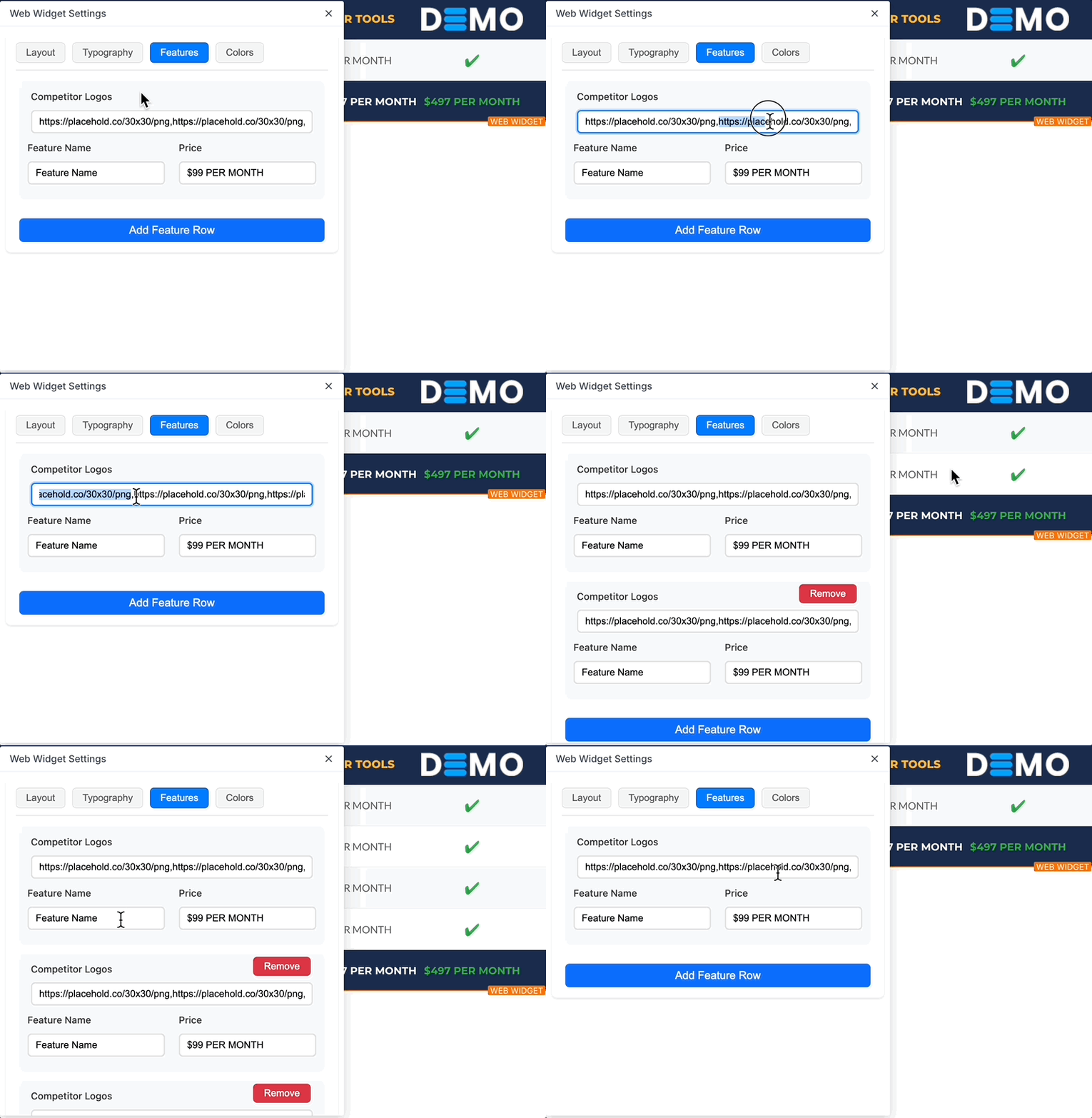
Important: Use image URLs for the "Competitor Logos". Just add a comma to separate the URLs (no need to add a space after the comma.)
We recommend no more than 5 Competitor Logos per Feature Row.
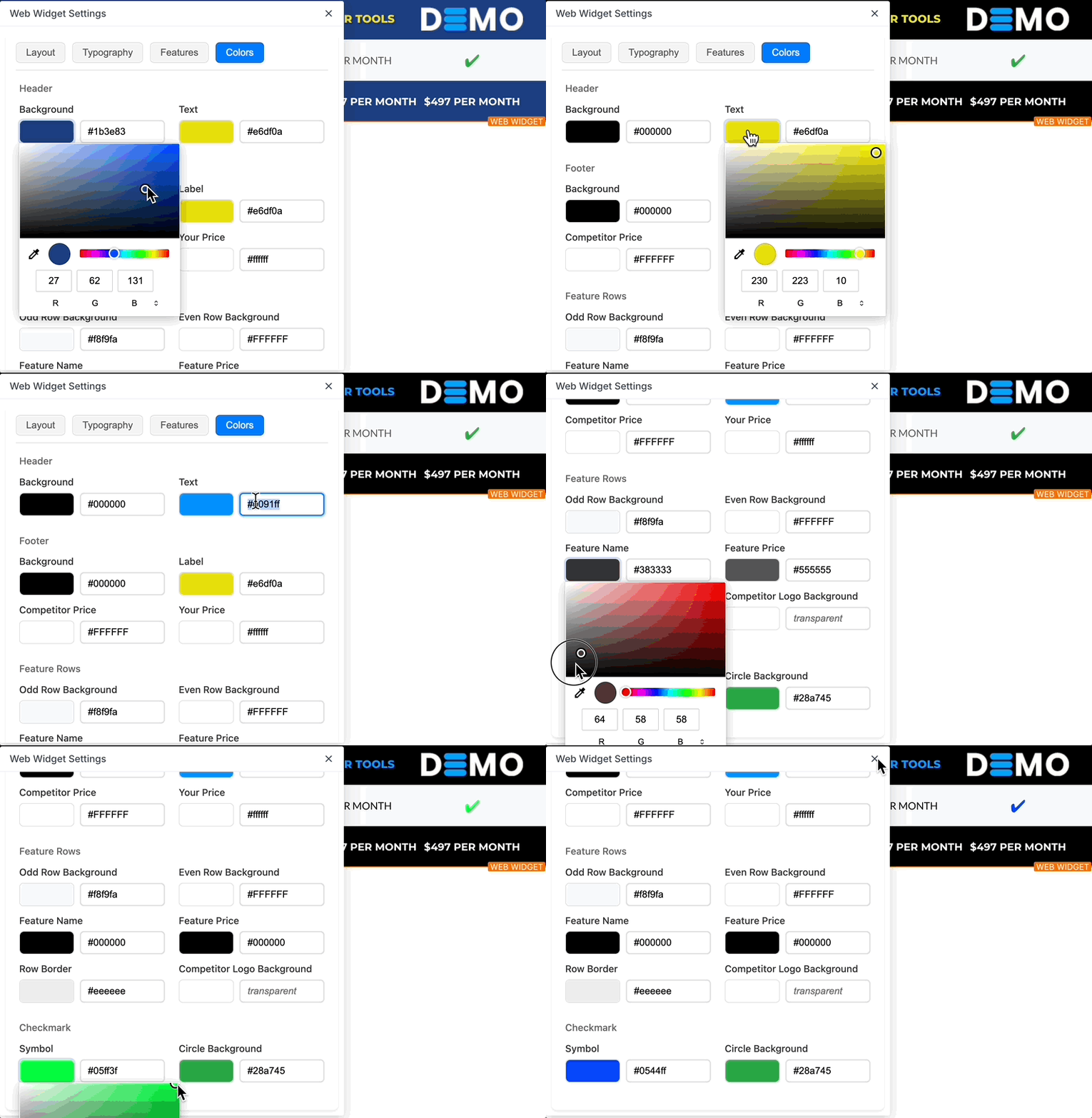
Set the Colors options.
Preview and Publish your page.
Pro Tip:
Place your Service Comparison Widget in a prominent location on your page to maximize visibility. You can position other elements around your Service Comparison Widget as well.